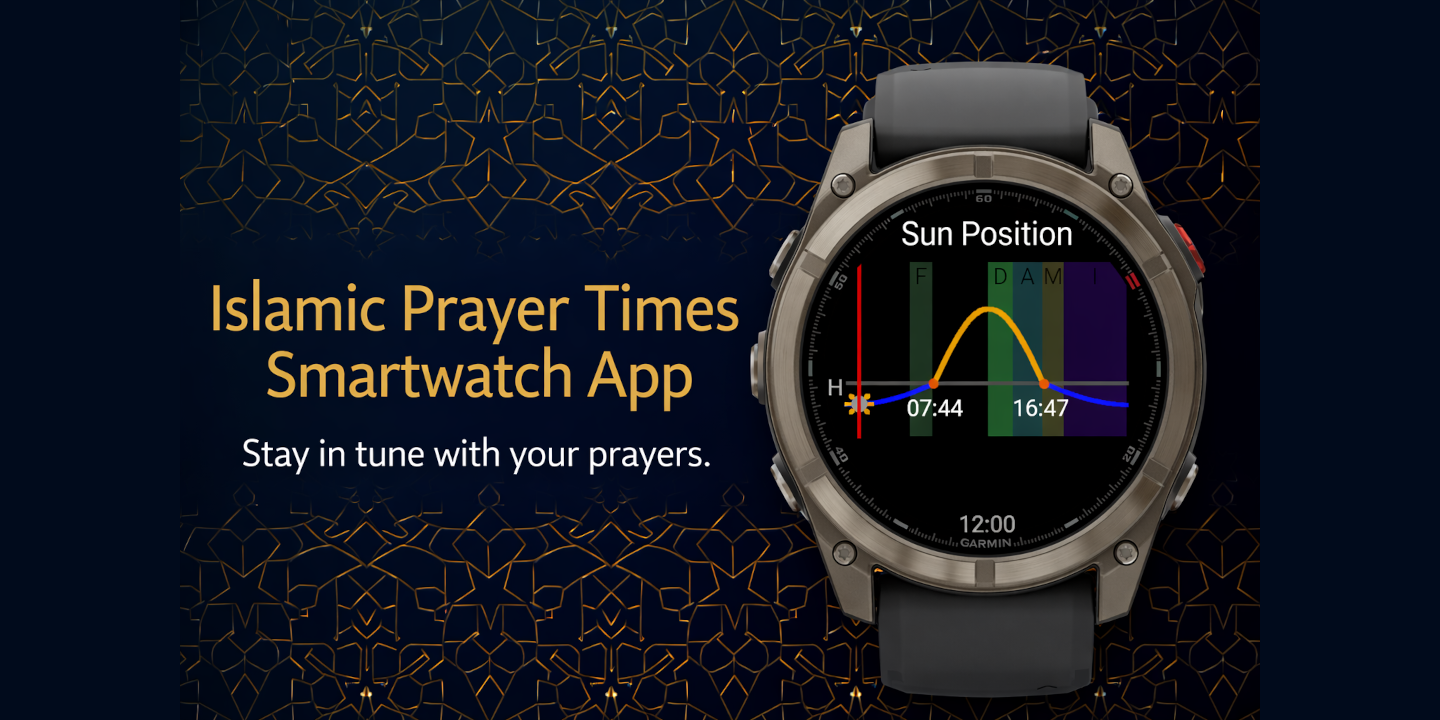
This guide covers everything you need to know to use Azan on your Garmin watch.
Navigation
Button Watches (Fenix, Forerunner, Enduro, Instinct, etc.)
Azan uses the standard Garmin 5-button layout. The middle-left button handles both UP (short press) and MENU (long press).
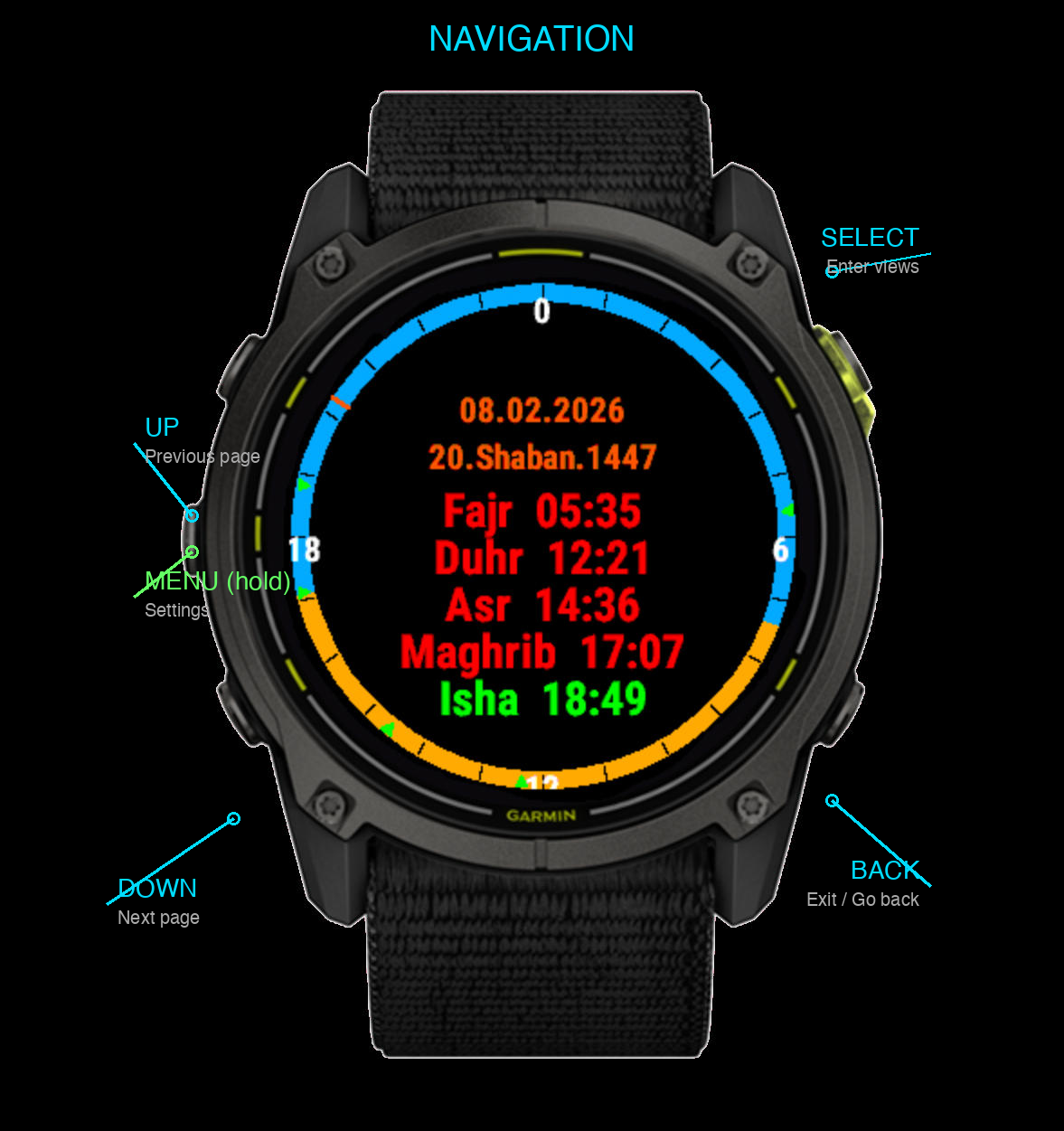
| Button | Action |
|---|---|
| UP (middle-left) | Previous page |
| DOWN (bottom-left) | Next page |
| SELECT (top-right) | Enter / confirm |
| BACK (bottom-right) | Go back / exit |
| MENU (hold middle-left) | Open settings |
Touchscreen Watches (Venu, Vivoactive, etc.)
On touchscreen watches without a dedicated MENU button, use touch gestures:
| Gesture | Action |
|---|---|
| Swipe up | Next page |
| Swipe down | Previous page |
| Tap | Enter / confirm |
| Long press (hold) | Open settings |
| Physical back button | Go back / exit |
Tip: The long-press gesture works from any screen, so you can always access settings no matter which page you’re viewing.
Pages
Use UP and DOWN (or swipe on touchscreen) to cycle through the five pages:
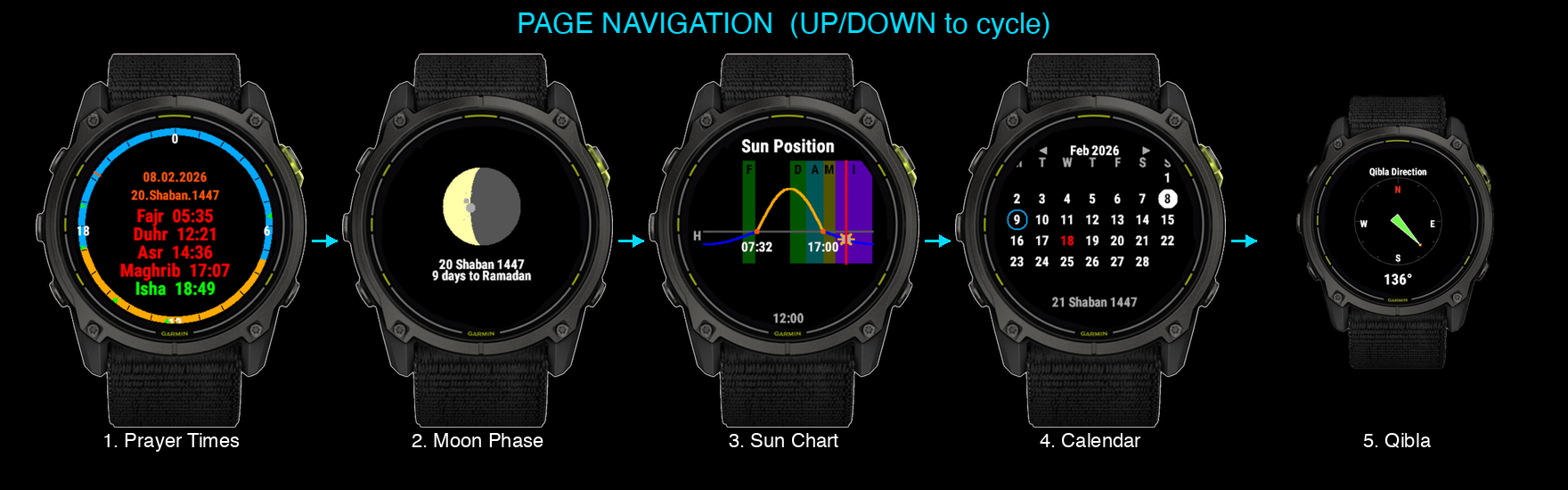
1. Prayer Times
The main screen showing all six daily prayer times (Fajr, Sunrise, Dhuhr, Asr, Maghrib, Isha) with a 24-hour ring visualization. The Gregorian and Hijri dates are displayed at the top.
2. Moon Phase
Shows the current moon phase with a graphical representation and illumination percentage. Also displays the Hijri date and a countdown to Ramadan when approaching.
3. Sun Chart
A visual sun trajectory chart showing the sun path throughout the day. Prayer time bands are color-coded, and the current time is marked with a red line.
4. Calendar
An interactive Hijri/Gregorian calendar. Today is highlighted with a white circle, and Islamic holidays appear in red.
5. Qibla
A real-time compass pointing toward Makkah, using your watch’s magnetometer. The bearing in degrees is shown below.
Calendar Controls
The calendar page has additional touch and button controls:
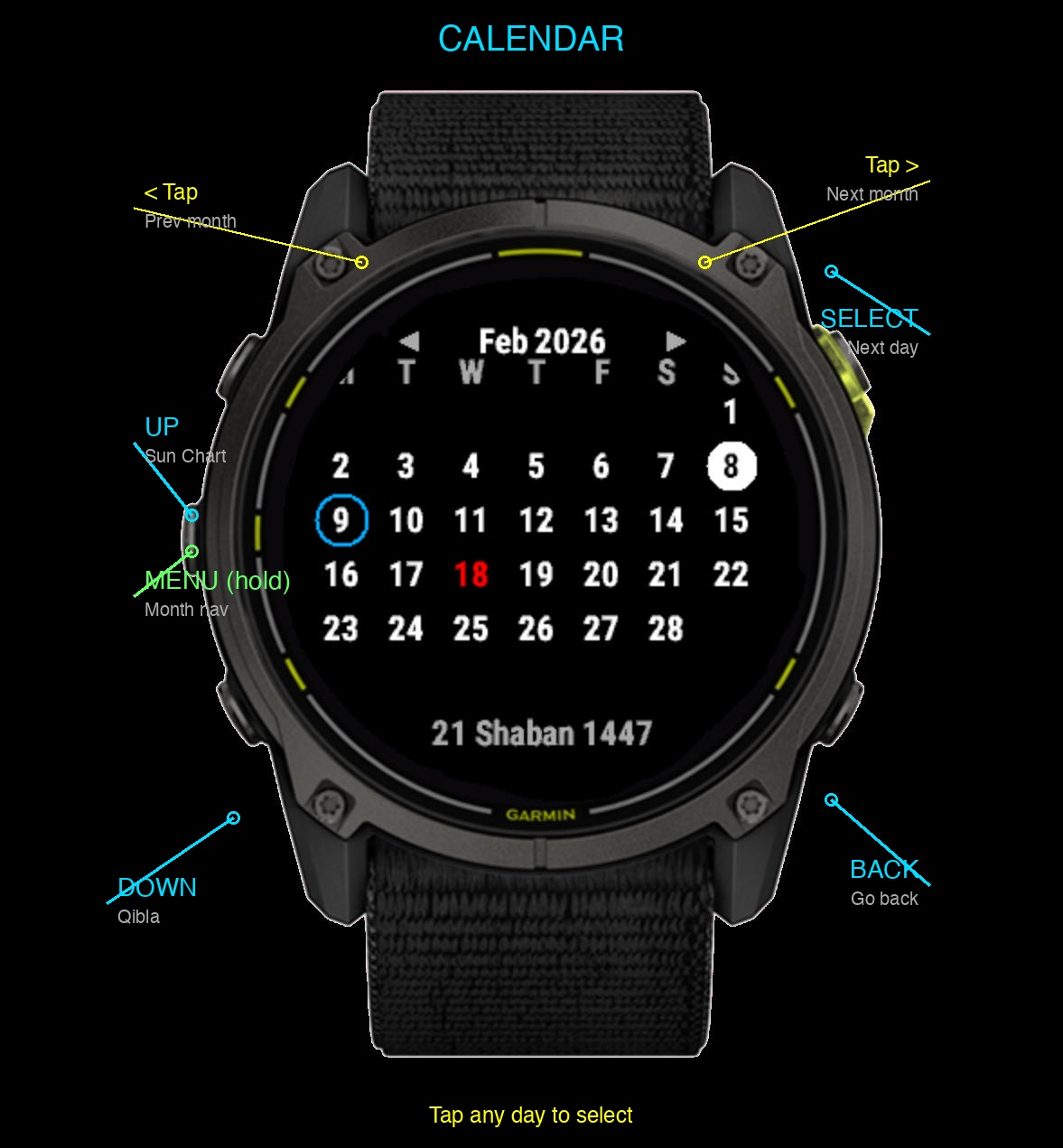
| Control | Action |
|---|---|
| Tap left arrow | Previous month |
| Tap right arrow | Next month |
| Tap any day | Select that day |
| SELECT | Advance to next day |
| MENU (hold) | Month navigation menu |
When you select a day, the Hijri date updates at the bottom. Islamic holidays are shown in red text.
Settings
Button watches: Long-press the middle-left button (MENU) from any screen. Touchscreen watches: Long-press (hold) the screen from any screen.
Available settings:
- Calculation Method: Choose from 12 methods (Muslim World League, Egyptian, Karachi, Umm Al-Qura, Dubai, Moon Sighting, ISNA, Kuwait, Qatar, Singapore, Diyanet, Custom)
- Asr Method: Standard (Shafi/Maliki/Hanbali) or Hanafi
- High Latitude: Adjustment rules for locations above ~48° latitude (Middle of Night, Seventh of Night, Twilight Angle)
- Refresh Location: Force a GPS location update
Widget Glance
The glance view shows at a glance on your watch face without opening the full app:
- Next prayer name with countdown (e.g., “Fajr in 2h 15m”)
- 24-hour bar: blue segments for night, orange for day
- Prayer markers: green triangles for upcoming prayers, gray for past
Notifications (Azan Pro)
Azan Pro adds prayer time notifications. Configure which prayers trigger alerts and the notification type (vibrate, tone, or both) from the settings menu.
Tips
- First launch: Grant location permission when prompted. The app uses GPS to calculate prayer times for your exact position.
- Offline: If GPS is unavailable, the app uses your last known location.
- Accuracy: Prayer times are calculated using astronomical algorithms aligned with the Adhan library. Times may vary by 1-2 minutes from other sources.
- Battery: The app only uses GPS while visible and caches the location for offline use.
Download
Azan on Garmin Connect IQ Store
Works on all Garmin watches supporting Connect IQ SDK 4.2.0+.